Put the Odoo chatter on the side or at the bottom, in one click
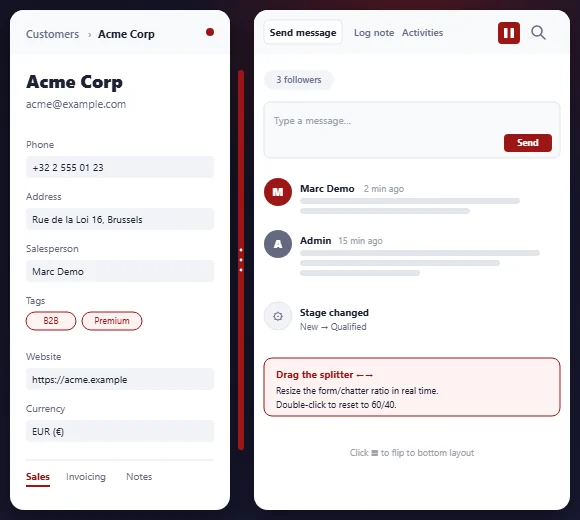
Odoo decides on its own where the chatter goes, based on your screen width. Chatter Position gives that choice back to you: a button to move it to the side or the bottom, and a bar to drag to set its width. Free, for Odoo 17, 18, 19 and 20.
The chatter is never where you want it
Odoo places the chatter using a fixed width threshold, which rarely matches the way you work.
Wide screen: the chatter eats your lines
On a wide monitor, Odoo forces the chatter to the side. On an 8-column order or invoice, the lines get squeezed or scroll sideways.
Laptop: the chatter drops to the bottom
Below Odoo’s threshold, a 13" or 14" laptop gets the chatter forced to the bottom, although there is room beside the form.
Everyone has their own preference
Two colleagues on the same database do not have the same screen or habits. The choice is made per browser.
What Chatter Position does
A small button in the chatter bar, and that is all there is to learn.
One click to switch
A button in the chatter bar, next to the search icon, moves it to the side or the bottom.
Width set with the mouse
On the side, a vertical bar can be dragged to share the screen between the form and the chatter. The setting is kept.
Double-click to reset
Double-click the bar to get back a clean 60/40 split, with a smooth transition.
On every screen
Your choice wins over Odoo’s threshold, from a 13" laptop to an ultra-wide monitor.
Nothing in the database
No model, no view, no setting: the choice lives in the browser. Uninstalling it leaves no trace.
Open to other modules
A chatterPosition service lets other modules read or change the layout.
No configuration
-
Install the module
From the Odoo Apps Store, like any module. No settings screen.
-
Open a record
A contact, an order, an invoice: the toggle button shows up in the chatter bar.
-
Click, drag
One click to move it to the bottom or the side, the bar to set the width, a double-click to get back to the default split.
Frequently asked questions
Another annoyance in your Odoo?
Describe it to us: if a module can fix it, we tell you what it costs before writing a single line.