Filter the Odoo catalog by colour, size or any other attribute
Up to Odoo 18, the Catalog button of a quotation, a purchase order or an invoice opened a product grid with an Attributes section in its side panel. Odoo 19 removed it: only Categories and Tags are left. Catalog Attribute Filter brings it back, without the limits of the old one. Free, for Odoo 19 and 20.
Finding “the red ones in size M” by hand
The catalog is most useful precisely when variants come in the hundreds.
No more Attributes section
In Odoo 19 and 20, the side panel of the catalog only offers Categories and Tags.
One value at a time
You type “red” in the search bar, then “M”, and start again for the next colour.
The old section had its flaws
In Odoo 18, it listed one entry per product (“Color: Red” once per shirt) and stopped at 200 entries with “Too many items to display”.
Two queries, whatever the number of variants
On an Odoo 19 test database with 20,000 variants (400 products, 10 colours, 5 sizes), when the catalog opens:
The Odoo 18 section is replayed with its settings (one entry per product, counters), with its 200-entry cap removed: with the cap, it only shows “Too many items to display”. Ticking a value does not reload the module’s panel.
What Catalog Attribute Filter does
One more section in the side panel, and nothing to configure.
One entry per value
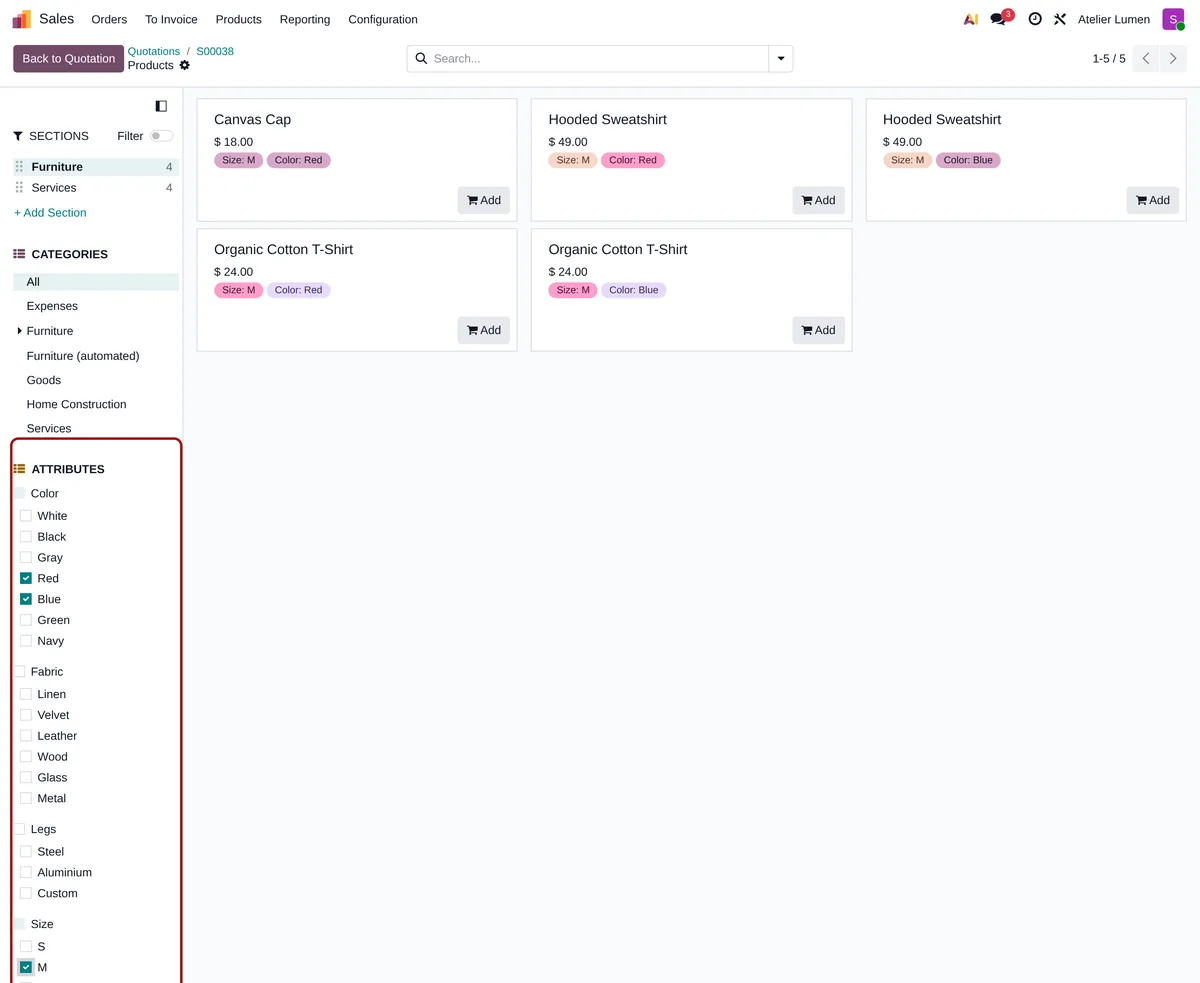
Values are listed once, under their attribute: Color › Red, Blue; Size › S, M, L. Red covers every product that comes in red.
Combined like in a web shop
Two values of the same attribute add up, two attributes intersect: red or blue, in size M.
Fast on large catalogs
No counters: the panel costs two queries when it opens, whatever the number of variants.
Only what is used
Archived values, values used by no active product and attributes that never create variants are not listed.
In every catalog
Quotations, purchase orders, customer invoices and vendor bills, repairs: every catalog built on the standard catalog search view gets it.
Nothing in the database
A search filter, nothing else: neither products nor orders are changed.
Installed means ready
-
Open the catalog
From a quotation, a purchase order, an invoice or a repair order, click Catalog.
-
Tick the values
Under Attributes, tick one or more values: the grid only shows the matching variants. Add them to the order as usual.
-
Nothing else to do
The section shows for users who see product variants (Variants setting).
Frequently asked questions
Our other Odoo modules
A catalog that is slow or hard to filter?
Show me your products and variants: I tell you what the standard can do and what needs a module.