A quotation built from several templates
In Odoo, a quotation has one quotation template. Picking a second one replaces every line: products, edited quantities and written sections are gone. Yet a proposal is rarely one block. Multi Quotation Templates adds a button that appends the lines of one or more templates at the end of the quotation, without erasing anything. Free, for Odoo 19, Community and Enterprise.
One template drives out the other
The Quotation Template field replaces, it never adds.
Everything is replaced
Picking a second template erases the quotation lines, including the ones you had edited.
Lines copied by hand
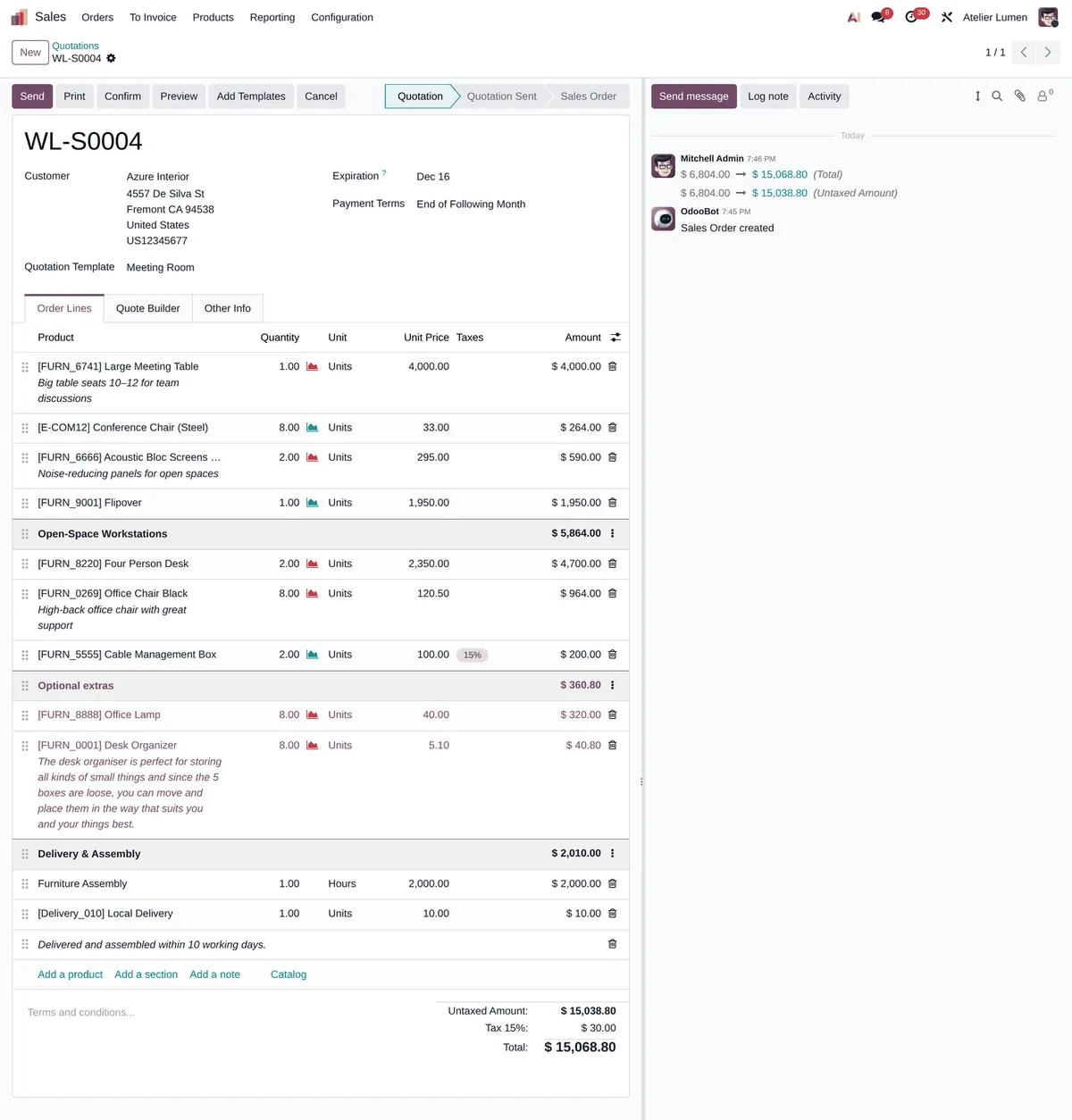
A meeting room, then the open space, then delivery and assembly: salespeople copy the blocks line by line.
One template per combination
To avoid copying, you end up with a template for every possible mix, and nobody finds their way any more.
What Multi Quotation Templates does
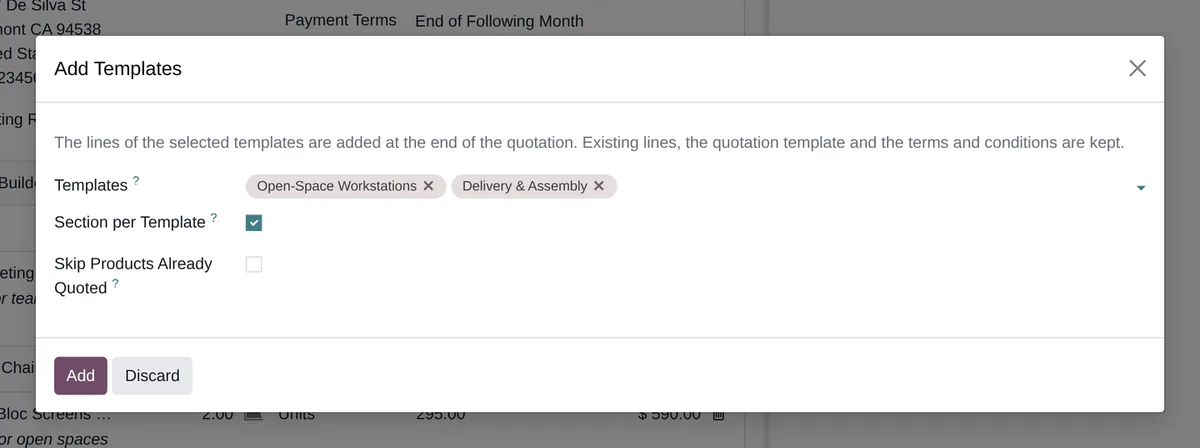
An “Add Templates” button on draft and sent quotations.
Add, never replace
The lines of the chosen templates go at the end of the quotation. Existing lines, the main template, terms and conditions, validity and payment settings are left untouched.
Standard prices
Lines are prepared by the same code as the standard field: pricelist, taxes, units, descriptions and optional sections behave exactly the same.
One section per template
On request, each template comes under a section named after it. Without it, the lines would join the last section of the quotation, optional or not.
No duplicates
An option skips the products already on the quotation: a block never brings the same product twice.
In the order of your templates
Templates are added in the order of the quotation templates list, which you sort by drag and drop.
The standard untouched
The Quotation Template field works as before. The button only shows to users who see quotation templates.
No settings
-
Open a quotation
On a draft or sent quotation, click “Add Templates”. Quotation templates must be enabled in Sales › Configuration › Settings.
-
Pick the templates
One or more templates, a section per template or not, products already quoted skipped or not.
-
Find the blocks at the end
Each template becomes a section with its lines, priced with the quotation’s pricelist. Optional sections stay optional on the customer portal.
Frequently asked questions
Our other Odoo modules
Do your salespeople still copy lines?
Show me a typical quotation of yours: I tell you how to cut it into reusable blocks.