Put the pause back in the Odoo 19 task timer
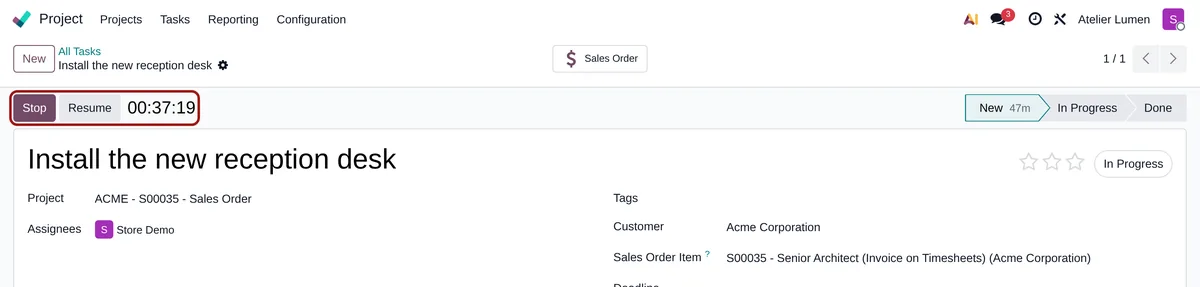
Up to Odoo 18, the timer of a task or a ticket had four buttons: Start, Stop, Pause and Resume. Odoo 19 kept only Start and Stop on the form, although the pause engine is still in its code. Timer Pause & Resume puts both buttons back where they were. Free, for Odoo 19 Enterprise.
A lunch break that costs a timesheet line
Without a pause, there are two ways left, and neither is good.
Stop for a break
Stopping the timer opens the description dialog, rounds the time and writes a timesheet line. Back at work, the timer starts again on a new line.
Or let it run
The timer keeps going through lunch or an urgent call, and the break ends up on the customer’s timesheet.
Lines in pieces
A task interrupted three times gives three rounded lines instead of one: the timesheet gets hard to read.
What Timer Pause & Resume does
Two buttons next to Stop, and one extra safety.
Pause, then Resume
Pause freezes the timer. Resume continues from where it stopped, on the same timesheet line, without the stop dialog.
The pause is never counted
When you stop after a pause, only the worked time goes to the timesheet, with your usual rounding and minimum duration.
Safe on a double click
A second Pause on a timer already paused (another tab, a page left open) is ignored, instead of counting the time between both clicks as worked.
Tasks and tickets
With Helpdesk timesheets, the companion module Helpdesk Timer Pause installs itself and adds the same buttons to tickets.
Odoo’s own engine
Odoo 19 still ships the pause engine: only the buttons left the form. The module puts them back, with no home-made computation.
Nothing to configure
The buttons show for timesheet users, like Start and Stop. They stay hidden on template tasks.
No settings
-
Start the timer
On a task of a project with timesheets, click Start, as usual.
-
Click Pause
The timer freezes. The button becomes Resume; Stop stays available.
-
Resume or Stop
Resume continues the count. Stop opens the standard dialog with the worked time only, ready to save.
Frequently asked questions
timesheet_grid). Helpdesk is not required.Our other Odoo modules
Did Odoo 19 take something else away?
Tell me what disappeared: I tell you whether a module can bring it back, and what it costs, before writing a single line.